You can close your OpenClaw Direct account from Account settings. Before the delete button becomes available, every Instance owned by the account must be deleted, every subscription must be canceled, and any other account members must be removed or ownership transferred.
Before you close your account
Account deletion is intentionally blocked while the account still owns resources that need separate action. This prevents a subscription from continuing after you leave and stops an account owner from accidentally removing access for other people.
Complete these steps first:
- Delete every Instance. Open the Instances page, terminate each Instance, and delete its record when the delete action becomes available.
- Cancel every subscription. Open Billing after the related Instance has been deleted, then cancel the remaining subscription.
- Resolve team ownership. If an account you own still has other members, open the Team page and either transfer ownership or remove those members.
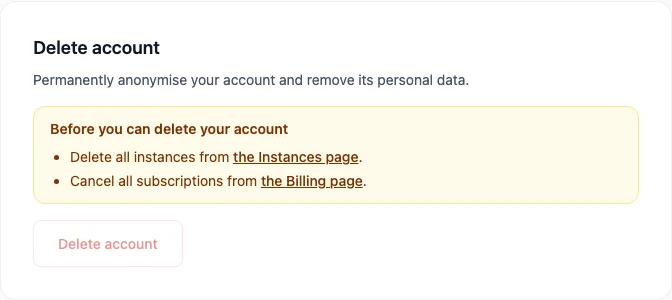
If more than one requirement remains, Account settings shows all of them together with links to the relevant pages. The delete button stays disabled until the list is clear.
Step 1: Open Account settings
Sign in to OpenClaw Direct. Open the account menu in the top-right corner and choose Settings. You can also go directly to openclaw.direct/users/edit while signed in.
Scroll past Profile information, Change password, and Passkey. The Delete account section is at the bottom of the page.
Step 2: Confirm the delete button is available
When there are no live Instances, subscriptions requiring cancellation, or unresolved team members, the red Delete account button becomes available. If it is still faded and cannot be clicked, use the warning above it to find the remaining blocker.
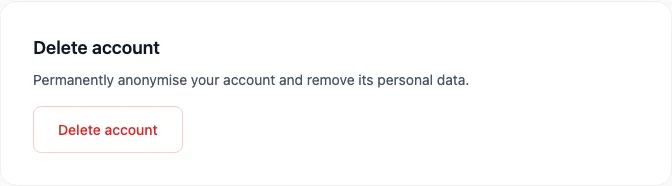
Step 3: Review the deletion warning
Click Delete account. A confirmation modal explains what will happen: personal account data will be deleted, Instance backups are included, and financial records that must remain for accounting or audit are retained only in anonymized form.
The request does not run immediately. It is scheduled for 24 hours later, but you will be signed out as soon as you confirm it.
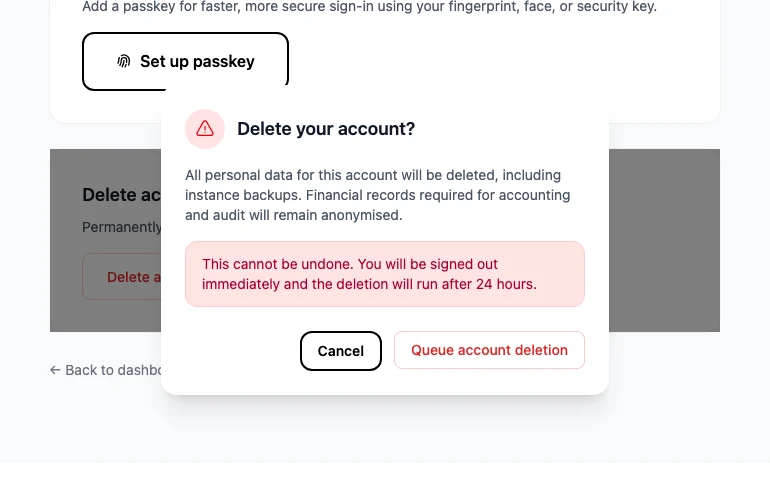
Step 4: Approve the final confirmation
Select Queue account deletion. Your browser then displays one short final confirmation. Accept it to submit the request, or cancel it to return to Account settings without scheduling deletion.
After the request is accepted, OpenClaw Direct signs you out and shows a message confirming that the account has been queued for deletion in 24 hours.
What happens after 24 hours?
The queued job anonymizes the user record and removes authentication data such as access tokens, passkeys, password credentials, and linked sign-in providers. Backups belonging to the account’s deleted Instances are removed from storage as part of the same process.
Records that must remain for financial accounting or audit are not presented as active personal account data. They stay linked to the anonymized record rather than retaining your original name, email address, or login credentials.
Treat confirmation as irreversible. There is no self-service restore or cancellation button after the deletion request is submitted.
Frequently asked questions
Why is the Delete account button disabled?
The account still has at least one live Instance, subscription requiring cancellation, or another member in an account you own. The warning directly above the button identifies each remaining requirement and links to the page where you can resolve it.
Why do I have to delete an Instance before canceling its subscription?
OpenClaw Direct prevents cancellation while a live Instance is attached to the subscription. Terminate and delete the Instance first, then return to Billing and cancel the now-unused subscription.
Does deleting my account also delete backups?
Yes. Backups belonging to the deleted Instances in accounts you own are removed during anonymization.
Can I delete my login while I still own a team account?
Not while other members depend on that ownership. Transfer ownership to another member or remove the remaining members before requesting deletion.
When will I be signed out?
Immediately after the deletion request is confirmed. The anonymization job itself is scheduled to run 24 hours later.
Need help before closing the account?
If a requirement remains after you have deleted your Instances and canceled your subscriptions, contact [email protected] before submitting the deletion request.